iPhone 7 Low Call Volume Fix: How to Solve Noise on iPhone 7 and 7 Plus Calls
From the information we've gathered so far, most complaints come from iPhone 7 Plus users. Some users have reported that during calls, the sound feels "very distant." Interestingly, other audio from the phone is not affected, meaning that the volume is normal when playing videos or music.
How to eliminate noise during calls on iPhone 7?
Some users have reported the current issue of the iPhone 7 Plus to Apple customer service, who indicated that the problem might be due to leakage or increased call receiver sensitivity. Users experiencing electrical noise can request a replacement for their new device. Not only domestic users but also some international users have encountered the same issue, and the official response has yet to provide a more definitive statement; this issue requires further follow-up.
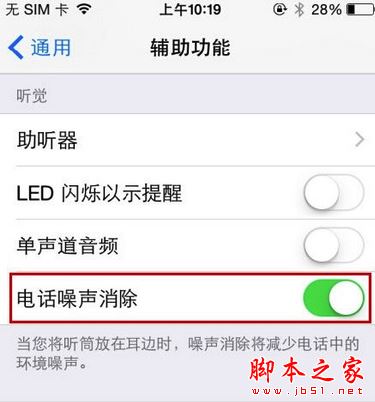
We can temporarily enable call noise cancellation to alleviate the loud noise issue on iPhone 7.
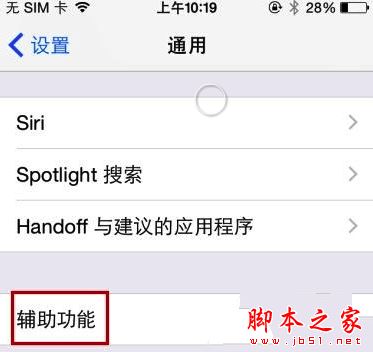
The specific steps to enable call noise cancellation are as follows:
1. Go to "Settings" - "General" - "Accessibility"
2. Enable "Call Noise Cancellation"
What to do if the call volume is low on iPhone 7 Plus?
First, we need to troubleshoot the cause:
Step 1: Determine
First, please confirm whether you are having trouble hearing others or if others are having trouble hearing you. Then rule out whether the call volume setting is low.
Step 2:
Troubleshoot the reason for not hearing others clearly.
The other person's microphone may have issues (or their call volume settings may be the problem); your receiver may be blocked (e.g., a protective film covering the receiver); poor signal; or issues with your phone settings.
How to solve low call volume on iPhone 7 Plus:
Step 1: First, ensure that the call volume is turned up to the maximum during the call to see if this resolves the issue.
Step 2: If the first step does not resolve the issue, try plugging in the original Apple headphones during the call and then unplugging them to see if this resolves the low call volume issue. If it still does not work, proceed to step three;
Step 3: For iPhone 5S and earlier models, you can try covering the small hole next to the camera during the call (to eliminate noise) to see if that is the cause of the noise.
Dial 10086 to disable the 4G HD voice call feature.